
🟥 N8N#
Install#
Warning
The Olvid node for n8n is still in a testing phase. In case of any issues, you can open a ticket on GitHub or send us an email at bot@olvid.io.
Installation of an Olvid daemon and an N8N instance#
In this part, you will deploy an Olvid daemon and an N8N instance using Docker and Docker Compose.
Note
If you wish to use an already deployed instance of Olvid daemon or N8N, you can choose to deploy only some of the following services. But you will need to correctly fill in the OlvidClient Key and Daemon Endpoint fields when creating N8N credentials.
To get started, create a new folder for your project. This will be your current directory going forward.
mkdir olvid-n8n
cd olvid-n8n
You will then need to generate an administrator client key. You can use the
uuidgenoropensslcommands depending on your configuration. The result should be stored in a.envfile.echo "OLVID_ADMIN_KEY=$(uuidgen)" >> .env
OR
echo "OLVID_ADMIN_KEY=$(openssl rand -hex 32)" >> .env
You can now create a
docker-compose.yamlfile with the following content.
 x-logging: &default-logging
   logging:
     driver: "json-file"
     options:
       max-size: "1m"
       max-file: "100"

 services:
   daemon:
     image: olvid/bot-daemon:1.5.0
     environment:
       - OLVID_ADMIN_CLIENT_KEY_CLI=${OLVID_ADMIN_KEY}
     restart: unless-stopped
     volumes:
       - ./data:/daemon/data
       - ./backups:/daemon/backups
     <<: *default-logging

   cli:
     image: olvid/bot-python-runner:1.5.0
     environment:
       - OLVID_ADMIN_CLIENT_KEY=${OLVID_ADMIN_KEY}
       - OLVID_DAEMON_TARGET=daemon:50051
     stdin_open: true
     tty: true
     entrypoint: "olvid-cli"
     volumes:
       - ./photos:/photos
     depends_on:
       - daemon
     # We use a profile cause cli only need to start on user initiative
     profiles:
       - "cli"
     <<: *default-logging

   n8n:
     image: docker.n8n.io/n8nio/n8n
     restart: always
     ports:
       - "5678:5678"
     environment:
       - N8N_DIAGNOSTICS_ENABLED=false
       - N8N_PUBLIC_API_DISABLED=true
       - N8N_PUBLIC_API_SWAGGERUI_DISABLED=true
       - WEBHOOK_URL=https://n8n.olvid.cloud/
       - NODES_EXCLUDE=["n8n-nodes-base.executeCommand","n8n-nodes-base.readWriteFile"]
       - N8N_REINSTALL_MISSING_PACKAGES=true
     volumes:
       - ./n8n_data:/home/node/.n8n
     entrypoint: sh -c "npm install @olvid/bot-node@0.0.15-alpha && tini -- /docker-entrypoint.sh" #* You can update the version of bot-node here
Start the containers with the following command.
docker compose up -d daemon n8n
Install Olvid nodes in N8N#
You launched an Olvid daemon and a N8N instance that are running in the background, now you need to configure N8N and install the Olvid community nodes.
Open the page
http://localhost:5678in your browser to access your N8N instance.Create an N8N account (this is a local account).
Go to the settings page

Click on
Community Nodes, then click onInstall a community node.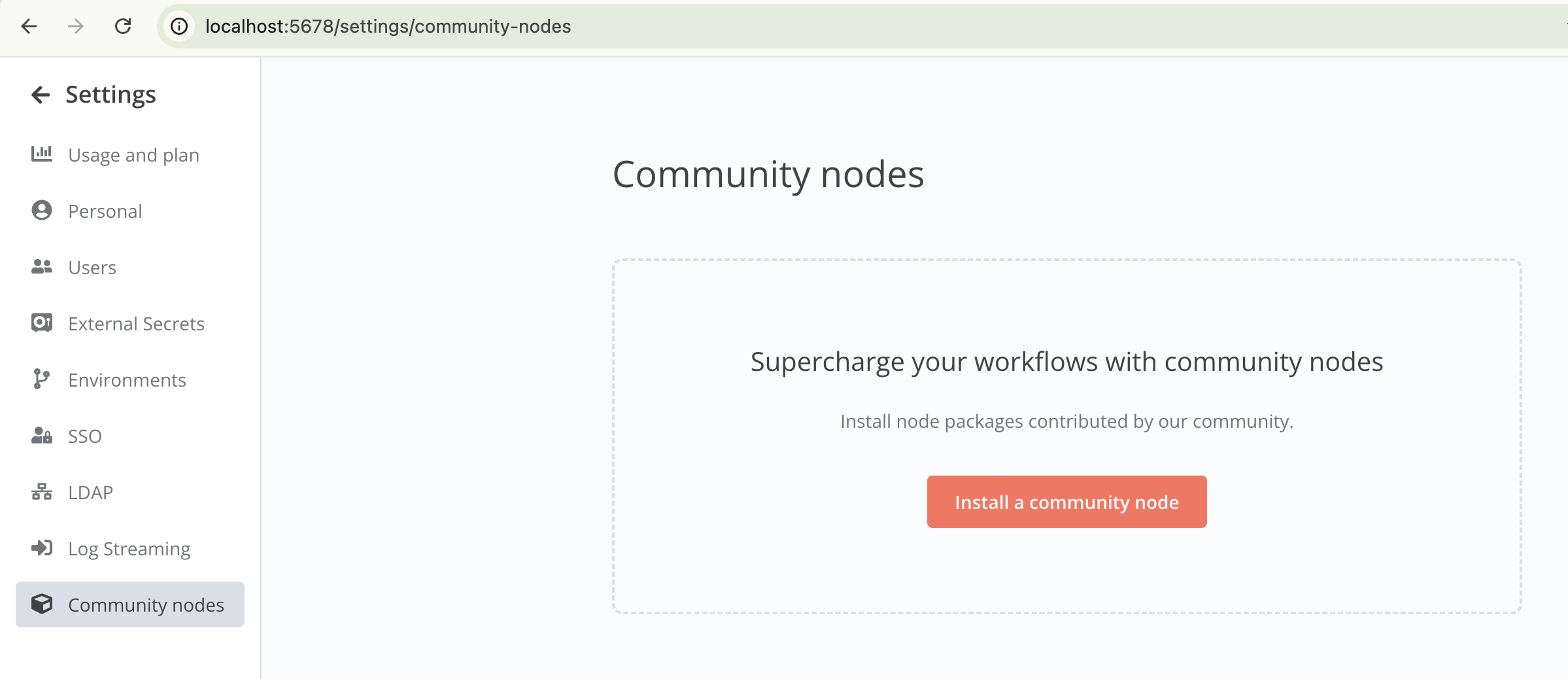
Enter
n8n-nodes-olvidin npm Package Name, take the time to consider the risks of installing a community node before checking the box and clicking onInstall.
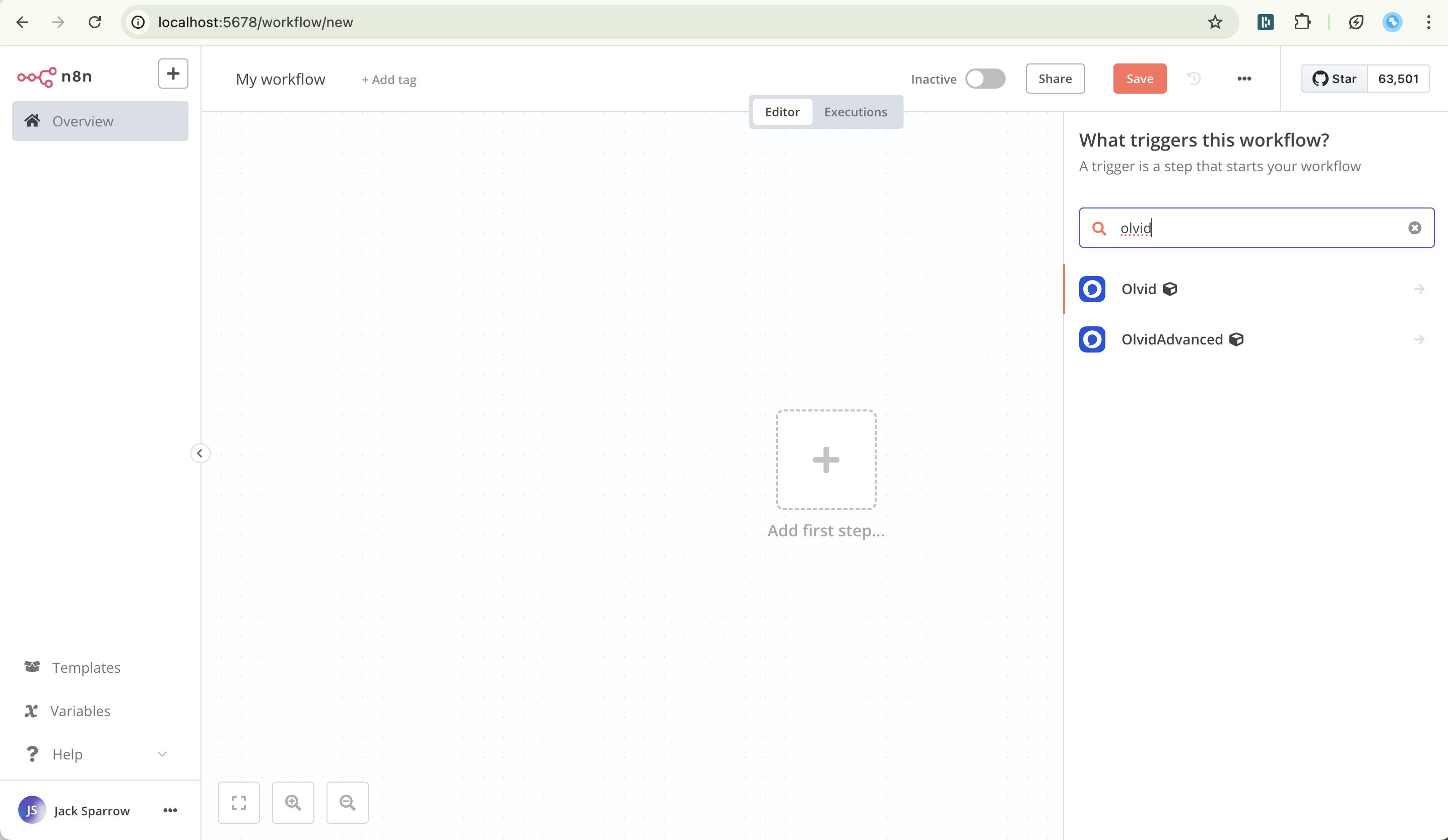
Refresh the page, before going back to the main page to create your first workflow.
Well done 🎉!
The Olvid node should now be available in your workflows.
Configuring the Olvid node#
Now that you have installed the Olvid node, before using it, you need to create credentials for it to be able to communicate with your daemon.
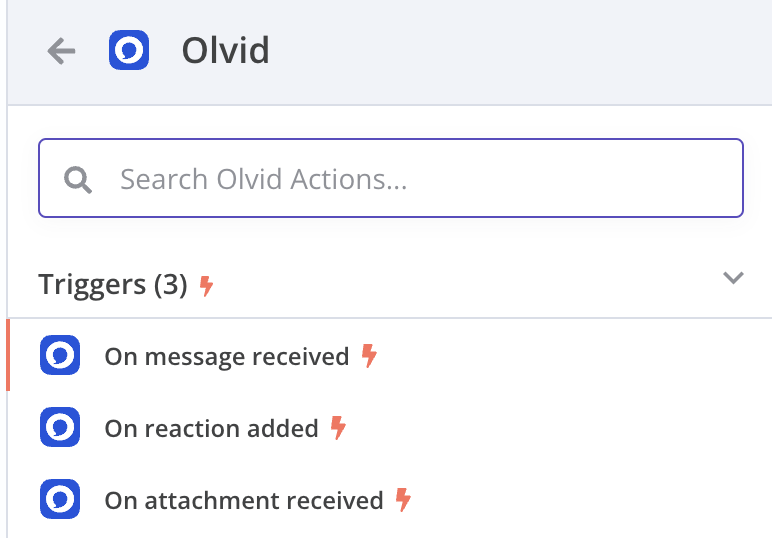
Open or create a workflow, and add an Olvid node to it.
You can independently choose an action or a trigger.
Open your node and create the credentials by clicking on
Select Credential.
You now need to create an Olvid client key to allow your node to communicate with the Olvid daemon. You can do this by using the following commands in a terminal, within the directory containing your
docker-compose.yamlfile.Prototype: identity new FirstName LastName Position Company
docker compose run --rm cli identity new Totoro
This command will return an integer that is the identifier of the identity you just created. For subsequent commands, we will consider this identifier to be 1.
Now we need to create an API key for this new identity using the following command.
Prototype: key new KeyName IdentityId
docker compose run --rm cli key new totoro-n8n-key 1
This command returns a key in the following form:
AAAAAAAA-BBBB-CCCC-DDDD-EEEEEEEEEEEE.Copy this key and paste it in the
OlvidClient Keyfield of your Credential creation modal in N8N.Enter the value for the
Daemon Endpointfield to set it ashttp://daemon:50051(This is valid only if n8n was created in the same docker-compose.yaml file, otherwise enter the URL that allows you to reach your daemon).You can now save your credentials with the Save button.
Congratulations 🎉!
You can now start creating your integrated workflows in Olvid!